After the Delete Button: A Tinkerer’s Field Audit of Chatbot Residue

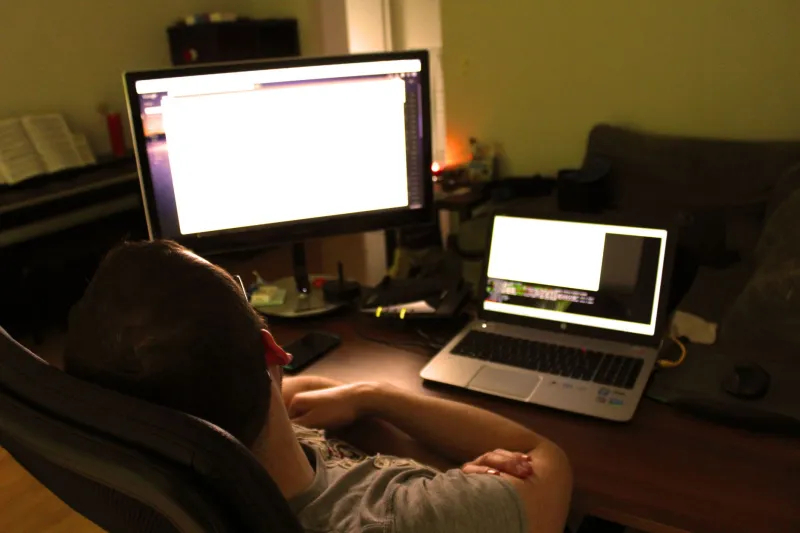
Photo: computer forensic audit chat logs database files terminal screen dark room, via i5.walmartimages.com
There’s a comfortable fiction baked into every chat window: close the tab, hit delete, and the conversation vanishes. For anyone running an uncensored model on a garage rig or poking at a hosted API, that fiction gets expensive fast. The interesting stuff — the weird system prompts, the half-finished jailbreak attempts, the personal details you fed in at 2 a.m. — tends to survive in places you never opened.
This isn’t a scare piece. It’s a field audit. Whether you’re running Ollama on a spare desktop or wiring an API key into a half-built interface, the same four families of residue show up again and again: prompt histories, memory databases, embeddings, and telemetry. Learn where each one hides, and you can decide what deserves to stay.
The delete button is a vibe, not a guarantee
Most chat UIs call a delete endpoint, then remove a row from whatever database sits behind the curtain. That’s it. Backups, write-ahead logs, cached pages, browser storage, and analytics pipelines may all keep copies. On a local rig, your operating system is also a witness: shell history, recent-files lists, clipboard managers, and crash dumps can all carry fragments.
Hosted providers add another layer. Their retention policy is the real rulebook, not the trash-can icon. In the US, consumer-facing chatbots and developer APIs often have different default retention windows, and enterprise settings can change the math again. The practical move is simple: read the provider’s data-retention page for the product you actually use, not the one you assume you’re using. Then check whether your client app has its own history feature turned on.
Four artifact families worth knowing
1. Prompt histories and chat transcripts
These are the obvious ones, but they hide in more than one spot. Locally, look for SQLite files such as chat.db, JSONL exports, YAML config folders, and app-specific data directories. On macOS, start with ~/Library/Application Support; on Linux, check ~/.config and ~/.local/share; on Windows, %APPDATA% is the usual suspect. If you built your own front end, grep your project folder for history, messages, and conversations.
In the browser, check localStorage, IndexedDB, and cache storage for whatever web UI you’re using. A chat that “disappears” after logout can still sit in IndexedDB until the site clears it. If you use a desktop wrapper, assume it has its own cache too.
2. Memory databases and scratchpads
Memory features are where things get personal. A local agent framework may store long-term facts in SQLite, a JSON file, or a vector database. Some tools keep a “scratchpad” or “notes” file that looks harmless until you read it. Search your project directory for filenames containing memory, facts, profile, notes, and state. Then open them. This is the difference between an audit and a guess.
Hosted memory is trickier because you don’t control the disk. Check the product’s memory settings and clear them from the account menu, not just the current chat. If the provider offers an export, pull it. You may find facts you forgot you volunteered.
3. Embeddings and vector indexes
Embeddings are the sleeper issue. When you upload documents or let a retrieval system index your chats, the text gets chunked and converted into vectors. The original chunks often sit right next to the vectors in a store like Chroma, FAISS, LanceDB, or a Postgres extension. Deleting the source document does not always delete the chunks. Sometimes it just orphans them.
On a local rig, find the vector-store directory and check its size and contents. If your tool has a rebuild command, use it after deleting documents. If it doesn’t, treat the whole store as compromised and start clean. This matters for anyone who has indexed journals, client notes, or medical PDFs into a homemade assistant. Those chunks can be surprisingly readable when you dump the store.
4. Telemetry and side-channel logs
This is the category people forget because it doesn’t look like a chat. It looks like a log file. Local inference servers often write request logs, model-loading logs, and error traces. Your reverse proxy may keep access logs with prompt sizes and timestamps. Your GPU driver may keep crash reports. Your terminal keeps command history. Your clipboard manager keeps everything you copied.
Hosted APIs have their own telemetry. Request metadata, token counts, timestamps, and error reports can be retained even when prompt content is not. Read the API docs for logging controls and opt-outs. If you’re on a free tier, assume less control, not more.
A practical audit you can run this weekend
Start with a map. Write down every place your chatbot touches: the model runner, the front end, the database, the vector store, the browser profile, and the API provider. Then walk the map in that order.
- List data directories. Use your file manager’s size column and sort by recently modified. You’re looking for files that changed after your last chat.
- Search for names, not just formats. Grep for a phrase you remember typing. That finds JSON, SQLite, and log files faster than guessing extensions.
- Open the memory file. If it contains facts about you, decide whether they belong there. Export first, then edit.
- Inspect the vector store. If you can’t explain what’s indexed, rebuild it from scratch.
- Check browser storage. Clear site data for the chat UI, then reload and confirm history is gone.
- Review provider retention. Find the actual retention window for your plan. Screenshot it for your own records.
The wipe routine that actually covers the bases
A good wipe has three tiers. Tier one is the chat-level delete: clear conversations and memory in the app. Tier two is the data-level purge: stop the service, remove the database, vector store, cache, and logs, then restart and confirm the app recreates empty stores. Tier three is the account-level reset: revoke API keys, clear provider-side memory, and delete uploaded files.
For local rigs, keep a small script that stops services, moves the data directory to an encrypted archive if you want a backup, and recreates a fresh directory with tight permissions. Don’t just rm the folder while the database is open. You’ll get a half-deleted mess and a false sense of cleanliness.
For hosted tools, rotate keys after any shared-machine session. Clear browser storage. Check whether your client app syncs history to a third-party service. If it does, decide whether that sync is worth the exposure.
When to stop auditing and nuke it
Auditing is for rigs you understand. If you inherited a setup, bought a used drive, or can’t explain where the vector store came from, nuke it. Reinstall the model runner, recreate the data directories, and start with a fresh API key. It’s faster than playing forensic archaeologist on someone else’s mess.
The point isn’t paranoia. It’s control. An unlocked chatbot is only as private as the artifacts it leaves behind. Know where they live, decide how long they stay, and make the delete button mean something.